Chapter 6: Lumen Oversight Gates: When and Why Lumen Pauses
Lumen pauses at certain points in a workflow and asks you to make a decision before it continues. These pauses are oversight gates. They exist because some recommendations should not be executed automatically — they require a human to read, judge, and authorise.
This chapter explains every gate level, what you see when one appears, and how to respond.
The Four Gate Levels
Level 0: Automated
No pause. No notification. The agent runs, writes its outputs, and the workflow continues. EventIQ, SignalMonitor, and DiscoveryOS operate at this level. These agents produce analysis, not decisions that trigger irreversible action.
Level 1: Advisory
The agent writes a recommendation to the report. No approval is required before the workflow continues. However, you have 24 hours to type OVERRIDE: [reason] if you disagree. If you override, the reason is logged to the Knowledge Graph (if Supabase is connected).
Agents at Level 1: PriceLogic, RoadMap, GrowthIQ (for standard interventions), LaunchPad (readiness audit), UXLayer, OpsCommand (routine updates), NorthStar (OKR cascade, unless the North Star itself changes).
Level 2: Approval Required
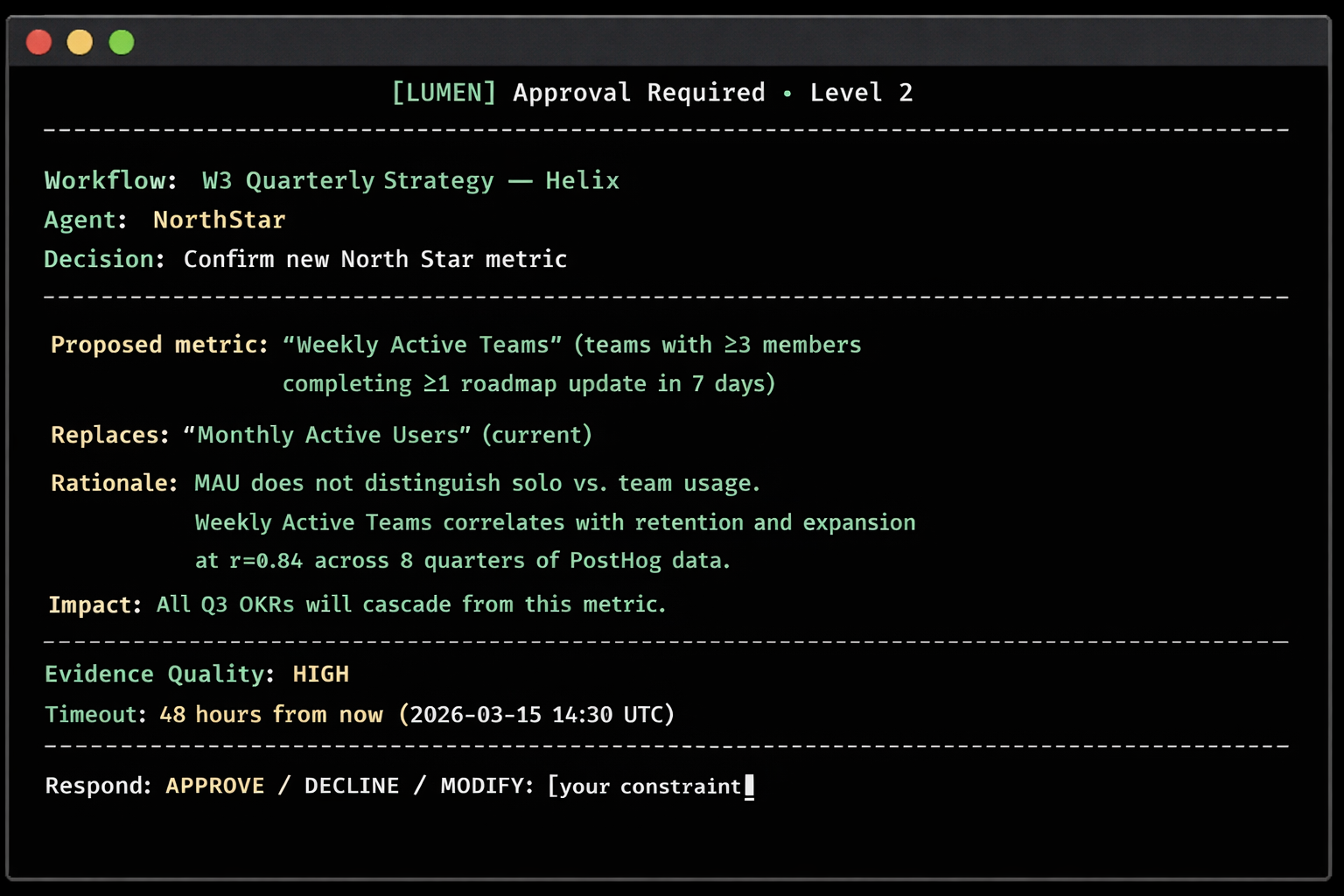
The workflow pauses completely. You must type APPROVE, DECLINE, or MODIFY: [constraint] before anything proceeds. The gate stays open for 48 hours. At the 24-hour mark, if Slack is connected, you get a reminder notification. The workflow holds indefinitely after 48 hours — it does not time out silently or auto-approve.
Agents at Level 2: DecideWell (always), OpsCommand (for board-level communications or crisis declarations), EcosystemOS (for breaking API changes or platform policy decisions).
Level 3: Governance Approval
A named authority must respond. The PM cannot self-approve. The workflow will not proceed until the named person from sign_off_required_by gives clearance. The timeout window is 72 hours. After 72 hours without a response, DataLayer blocks the action entirely and the workflow stops.
Agents at Level 3: DataLayer exclusively. Triggered by AI or ML features, bias audit failures, third-party data sharing, or platform policy changes affecting user data.
What a Gate Looks Like
Here is a Level 2 gate from a W3 Strategy run, at the North Star definition step:
How to Respond
APPROVE — You accept the recommendation as presented. The workflow continues immediately.
> APPROVE
[LUMEN] Decision recorded. Proceeding to the OKR cascade.
DECLINE — You reject the recommendation. The workflow stops at this step. Lumen records the decline and asks for direction.
> DECLINE
[LUMEN] Recommendation declined. What should I do instead?
(Type a revised instruction, or type `stop` to end the workflow.)
> Use "Team Activation Rate" — percentage of new teams completing first roadmap within 7 days.
[LUMEN] Understood. Re-running NorthStar with revised metric definition...
MODIFY — You accept the direction but add a constraint. Lumen re-runs the relevant step with your constraint applied.
> MODIFY: The North Star metric change cannot take effect until Q3 starts (April 1).
Run the OKR cascade assuming MAU through March, then switch.
[LUMEN] Understood. Generating a phased OKR cascade with MAU through 2026-03-31,
Then transitioning to Weekly Active Teams from 2026-04-01.
The Level 3 Gate: DataLayer
DataLayer governance gates look different from Level 2 gates because they require a named approver, not the PM.
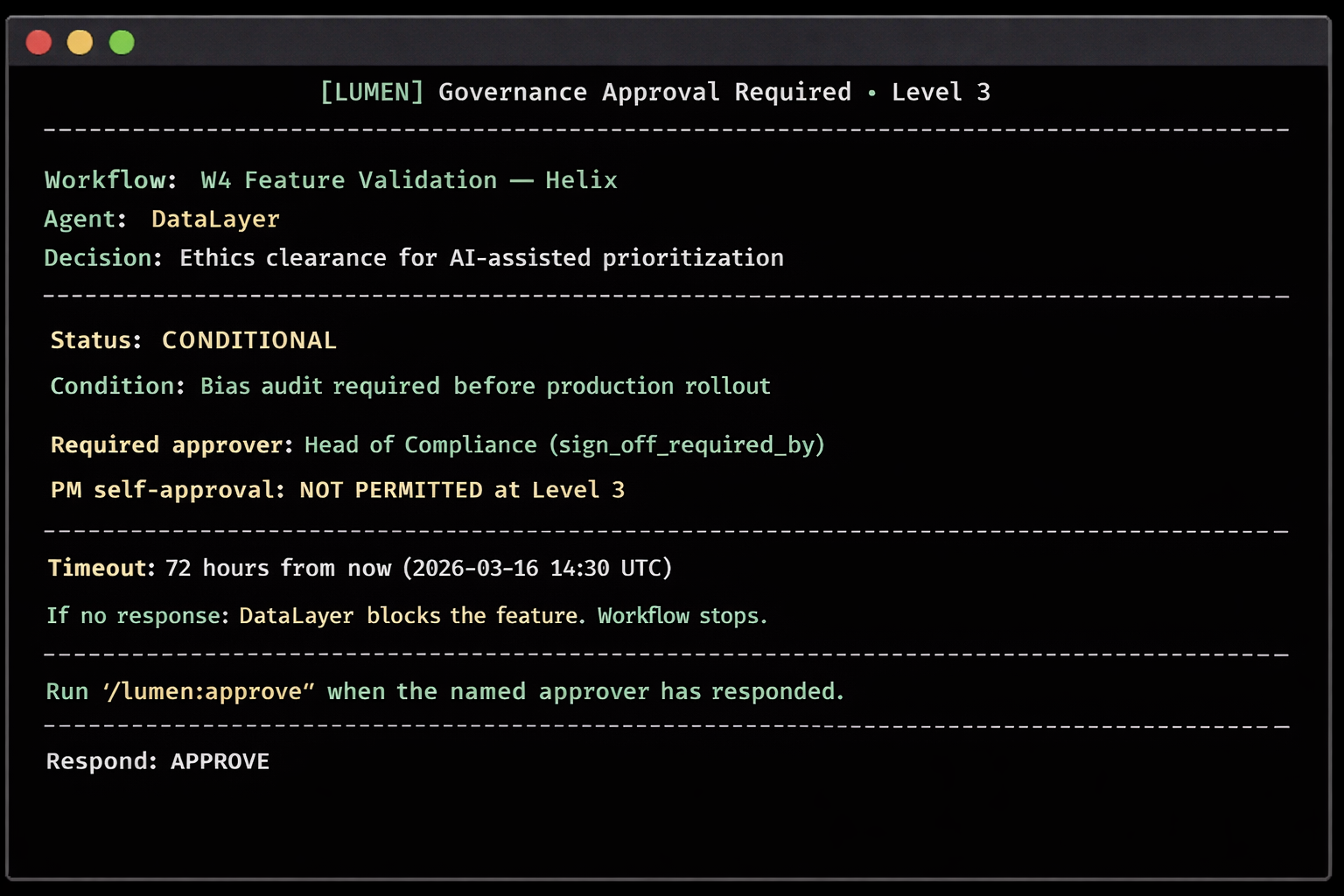
When the named approver responds, you record it:
/lumen:approve
[LUMEN] Which gate are you approving? (Enter outcome_tracking_id or workflow name)
> W4-ethics-clearance-helix-20260313
[LUMEN] Enter approval response: GRANTED / BLOCKED / CONDITIONAL
> GRANTED
[LUMEN] Ethics clearance recorded. Workflow W4 will resume from the DataLayer checkpoint.
If DataLayer issues a BLOCKED status (not CONDITIONAL, not GRANTED), the workflow stops entirely. You cannot proceed. The feature requires redesign before Lumen continues.
Common Questions About Gates
Can I skip a gate? No. Level 2 and Level 3 gates are blocked by design. The Orchestrator will not proceed until a response is recorded. This is intentional — the gate exists precisely because the decision requires a human.
What if I need more time than 48 hours? The workflow holds indefinitely after the timeout. It does not close or delete. When you are ready, respond normally. The only consequence of a timeout is a Slack reminder at 24 hours (if Slack is connected).
What if I change my mind after approving? You cannot undo an APPROVE within Lumen. If you need to reverse a decision, re-run the relevant workflow step with updated constraints. The Knowledge Graph will log both decisions with timestamps.
Can I get gate notifications without being in the terminal? Yes, if Slack is connected. Level 2 gates send a notification to the Slack channel configured in lumen-setup.json. You can read the full gate context in Slack and then return to the terminal to type your response.